
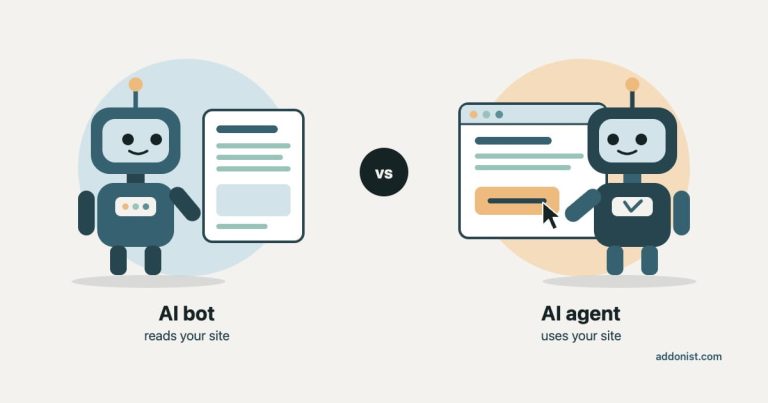
AI crawlers read a website so an AI system can talk about its content. AI agents use a website so they can complete a task.
That’s the simplest way I can explain the difference, and it matters because they need different things from your site. A bot fetches your HTML and leaves. An agent opens your site in a real browser, clicks buttons, fills in forms and moves through pages for someone, like booking a demo or comparing prices.
The term “AI agent” is also used for tools that only fetch pages, like coding agents. In this article, I mean agents that use your site in a browser, because they’re the ones that click, type and complete tasks for people.
In my article on the types of AI bots, I explained what each bot does and what happens if you block it. This article is about agents: what they are, whether your site needs to be ready for them, and how to check.
AI agents vs AI bots at a glance
The main difference is that AI bots read your site, while AI agents use it. A bot fetches your pages so an AI tool can learn from them or quote them in an answer. An agent opens your site in a browser and acts for a person, like booking a demo or buying a product.
| AI bots | AI agents | |
|---|---|---|
| What they do | Fetch pages so AI tools can learn from them, index them or quote them | Use your site like a person: click, type, fill in forms, complete tasks |
| Examples | GPTBot, ClaudeBot, OAI-SearchBot, PerplexityBot | ChatGPT agent, Claude in Chrome, Perplexity Comet |
| How they show up | Their own user agent, like GPTBot | Often a normal Chrome browser. Some now sign their requests |
| JavaScript | Usually not run | Run, like a normal browser |
| robots.txt | Most follow it | Depends on the agent. Some don’t follow it when a person started the task |
| What they need | Access, and content in the HTML | Pages they can load, understand and interact with |
Does your site need to be ready for AI agents?
For most sites, not urgently. AI agents don’t yet visit websites in large numbers, but their use is growing fast, so it’s worth knowing where you stand.
Google takes a similar view. Its guide to generative AI features in Search suggests looking into agent readiness if it’s relevant to your business and you have extra time, not as a first priority.
The numbers I found come from bot security companies, so treat them as indicators rather than exact measurements:
- HUMAN Security’s 2026 traffic report found that traffic from AI agents grew about 7,851% in 2025, the fastest of any traffic type they track. It started from a very small base.
- In HUMAN’s August 2026 data, 80% of agent activity was browsing products, reading content and searching. Only 2.1% was checkout and payment.
- Agent traffic is concentrated in e-commerce (46%), media (36%) and travel (16%). SaaS made up less than 1%.
You may also see claims that over half of all web traffic is no longer human. That’s true, but it includes all bots and crawlers, not just agents completing tasks.
So the real question is whether people complete tasks on your site, or mainly read it.
| Priority | Sites | Why |
|---|---|---|
| High | Online stores, booking and travel sites, SaaS with sign-ups or trials | Agents are used to buy, book and compare. If they get stuck, you lose the conversion. |
| Medium | Lead generation sites with forms, local businesses with contact or booking forms, sites with calculators or tools | Agents may fill in forms or use tools on someone’s behalf. |
| Low | Blogs, publishers, informational sites, portfolios | People mostly read these, so AI bots matter more than agents. |
This is about testing flows like forms and checkout. Agents still read content on every type of site.
Most of my work is on B2B SaaS marketing sites. For them, the most likely agent task is booking a demo or filling in a contact form, so that’s the first flow I’d test.
If your site is low priority, focus on AI bot access first. And keep in mind that many agent fixes are also accessibility fixes, like link text, form labels and correct page structure. They help people using screen readers too, so the quick ones are worth doing on any site.
What AI bots need from your site
AI bots need two things: access, and content in the raw HTML. Some AI bots can run JavaScript, but most can’t, so keep your important content in the HTML.
- Access means robots.txt allows the bots you want, and nothing else blocks them, like a CDN, firewall, hosting rule or security plugin.
- Readable content means your important text is in the HTML the server sends, not loaded later by scripts.
I covered this in detail in Types of AI Bots and How They Impact Your AI Visibility, including what happens when you block each type. For most sites, this is still the part that decides whether you show up in AI answers.
What AI agents need from your site
Agents need access too, but they also need to understand the page and interact with it. Google describes browser agents as analyzing screenshots, inspecting the page’s code and reading its accessibility tree, which is why these are the four places where they usually get stuck.
Where AI agents get stuck on your site
An agent has to get through each step to complete a task for someone.
An agent’s path
1. Pages agents can load
An agent can’t do anything on a page it can’t open. The most common blockers are bot protection that challenges automated browsers, CAPTCHAs, cookie walls that hide the page until someone clicks, and content behind a login.
Some agents now make this easier to manage. OpenAI’s ChatGPT agent signs its requests with a standard called Web Bot Auth, so your CDN or firewall can verify that a visit really comes from ChatGPT and allow it. OpenAI explains how to do this in Cloudflare, Akamai and other tools.
2. Content and buttons agents can understand
Agents don’t just look at your page. Many read its accessibility tree, the structured version of the page that browsers build for screen readers. It tells the agent what each element is: a link, a button, a menu, a form field.
If that structure is broken, the agent has to guess. The most common problems are:
- Buttons and links without text, like icon-only social links
- Form fields without labels
- Elements that look like buttons but are just styled boxes, without a real button or link tag
- Lists, menus and tabs marked up with the wrong roles
- Clickable elements hidden under transparent overlays, which agents may ignore
These are the same issues accessibility audits catch, which is why fixing them helps both agents and people.
3. Pages that stay stable
Some agents work from screenshots and click by position. If the layout moves after the page loads, the agent can click the wrong element. Lighthouse measures this with Cumulative Layout Shift (CLS). Aim for under 0.1, the threshold Google already uses for a good page experience.
Watch out for pop-ups, chat widgets and cookie banners that appear late and cover buttons. Agents can usually close them too, but only when the close button is clearly labeled and the pop-up doesn’t appear in the middle of an action. An unlabeled “X” or a banner that shows up late can make an agent click the wrong thing or stop and ask the user what to do.
4. Forms and flows agents can finish
This is where agents actually complete tasks, so it matters most for sites with checkout, booking or demo forms. Use clear labels, show error messages next to the field they belong to, and avoid steps that only work on hover or with custom widgets, like unusual date pickers.
Also add standard autocomplete attributes to fields that ask for personal details, like name, email, tel or street-address. They tell the browser exactly what each field is for, which is why browser autofill works, and they’re already an accessibility requirement for these fields. For an agent filling in a form for someone, they’re one more clear signal about which detail goes where, on top of a good label.
There’s also a new, proposed standard called WebMCP. It lets a site describe its actions, like submitting a form, directly to AI agents. It’s still experimental and very few sites use it, so you don’t need it today.
These issues usually come from a small number of reusable components: forms, accordions, sliders and review widgets, often from third-party plugins. The good news is that fixing one component fixes it on every page that uses it.
How to tell if AI agents visit your site
This is harder than with bots. Most agents run in a normal browser, so in your analytics and server logs they often look like a regular Chrome visitor.
There are a few ways to spot them:
- Signed requests. Agents that use Web Bot Auth, like ChatGPT agent, add signature headers to their requests. Bot management tools from Cloudflare, Akamai and HUMAN can recognize these and label the traffic.
- Bot management reports. If you use one of these tools, check whether it has a category for AI agents. That’s currently the most reliable view.
- Behavior. Very fast, very direct sessions that go straight to a form or a product page can be a hint, but they can’t prove anything on their own.
For most sites, the honest answer today is that you can’t see all agent visits. That’s another reason to test your key flows instead of waiting for the traffic data.
How to check if your site works for AI agents
The easiest place to start is Lighthouse. Google added an experimental Agentic Browsing category to Lighthouse. You can run it on PageSpeed Insights without installing anything, which is how I tested my site, or in Chrome DevTools (Chrome 150 or newer). It checks:
- Accessibility for agents: link and button names, form labels, valid roles and page structure
- Layout stability: Cumulative Layout Shift
- llms.txt: whether the file exists and loads correctly
- WebMCP: whether the site describes its actions to agents, and whether those descriptions are valid
Then test your most important flow with a real agent. Ask ChatGPT agent or Claude in Chrome to book a demo, fill in your contact form or add a product to the cart, and watch where it hesitates or fails.
How to read a low Lighthouse pass ratio
This category doesn’t give a score out of 100. It shows how many checks passed, like 1/2. That can look alarming, so it’s easy to use as proof that a site isn’t ready for AI agents. Before you worry, look at what’s behind the number.
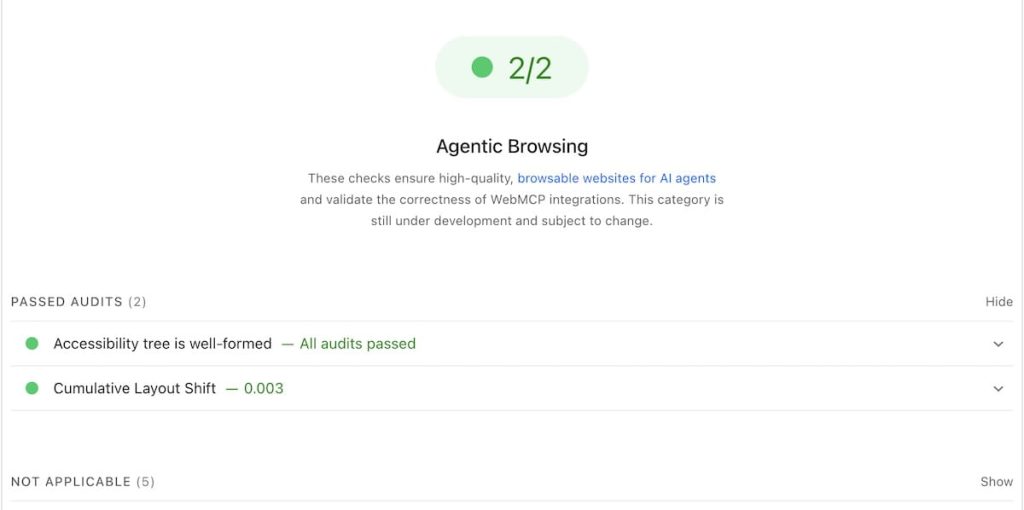
When I ran it on my own site, it showed 1/2. That looks like a failing grade, but only two checks applied, and layout stability passed easily with a CLS of 0.003. The other five checks were “Not applicable”, because my site doesn’t use WebMCP, llms.txt or an AI catalog file.
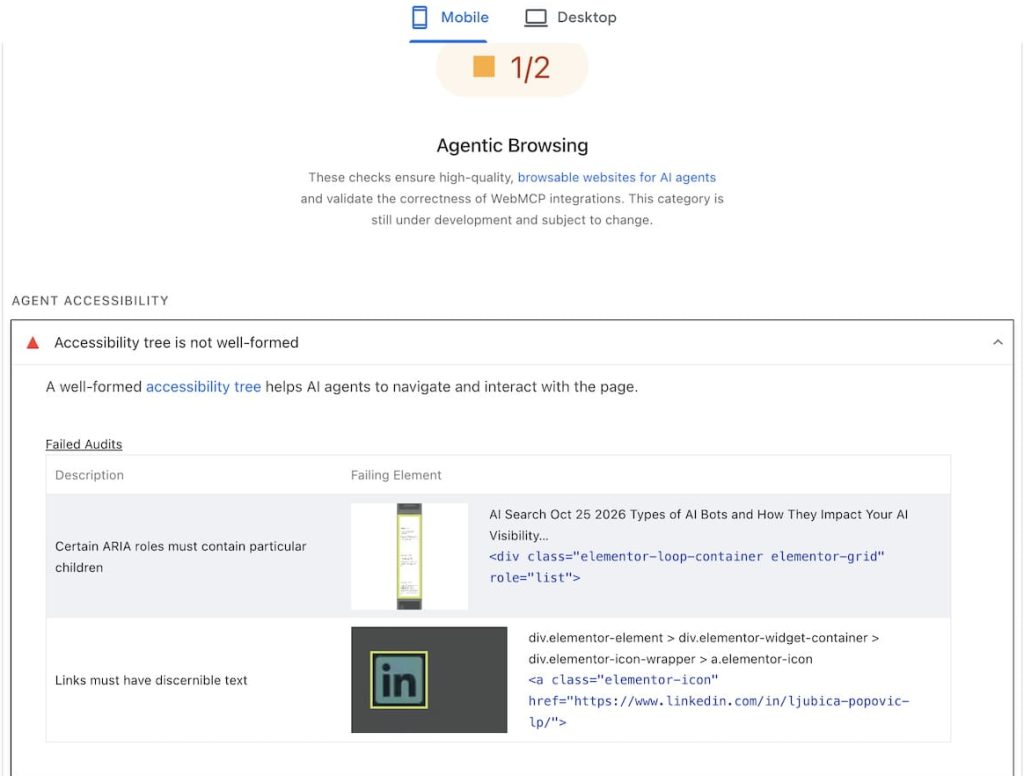
The one failure came down to two small issues, both from my page builder: a blog grid marked as a list without list items, and a LinkedIn icon link with no text. Both took only a few minutes to fix:
- The icon link: I added an aria-label to the link in Elementor’s link options, so it now has a name agents and screen readers can read.
- The blog grid: Elementor doesn’t let you change this in the widget settings, so I added a short script that marks each post card as a list item, only on pages with the grid.
After that, the result went to 2/2.
So when you read the result:
- “Not applicable” isn’t a failure. It means a feature, like WebMCP, isn’t on your site.
- Look at which elements fail, not the ratio. One broken component can fail a check on every page.
- Decide based on your priority. A failed check matters much more on a checkout page than on a blog.
What about llms.txt?
Lighthouse checks for llms.txt, but a missing file is marked “Not applicable”, not as an error. That matches how I see it: llms.txt can help agents, but it doesn’t drive your AI visibility. Google’s Search team says you don’t need special files like llms.txt to appear in AI Overviews or AI Mode.
Google’s Chrome team gives one reason to have it: without the file, agents may spend more time crawling your site to understand its structure and main content. So the benefit is about saving an agent time, not about ranking or citations. It’s also worth noting that Google’s own guide to building agent-friendly websites doesn’t list llms.txt among its best practices.
It can still be useful for documentation and developer sites, where coding tools and agents look for a clean list of pages.
It’s a small file, so if it’s useful for your audience, there’s little reason not to add it. Just don’t expect it to get you cited more.
Should you block AI agents?
In most cases, no. Today, most of what agents do on websites is research on behalf of a real person: comparing products, reading reviews, checking prices. Blocking them means that person gets an answer without your site, or picks a competitor whose site works.
But agents can also be misused. HUMAN Security points out that the same agent behavior can come from a real customer or from a fraud operation, and they’ve seen AI browser agents used to try stolen card details. Automated sign-ups, scraping and bulk bookings are other risks.
That’s why I wouldn’t block agents in general, but I would protect the actions that can be abused:
- Login and account changes
- Checkout and payments
- Sign-up, booking and contact forms
Rate limits and bot management on those pages work better than a block on every agent. Agents that sign their requests, like ChatGPT agent, can also be allowed explicitly, so you don’t block legitimate ones by accident.
Keep in mind that bot management can only recognize some agents. Cloud agents, like ChatGPT agent, run on the AI company’s servers and can sign their requests, so they’re easy to verify. Agents that run in the person’s own browser, like Claude in Chrome or Perplexity Comet, use that person’s browser and connection, so they look almost exactly like a human visitor. That’s why protecting the sensitive actions themselves works better than trying to block agents.
It’s still early. Agents aren’t common on most sites yet, but they’re probably the future of how people use the web. For most sites, that means preparing without overinvesting: fix the quick accessibility issues, test your most important flow, and check again as agent use grows.