Content Extractor for Google Sheets™
Get page text from a list of URLs, right in Sheets
Paste your URLs into a sheet. The tool checks each page’s status code and indexability, then pulls out the main text without menus, headers or footers. No crawler license needed.
- Status code, indexability and clean main text for every URL.
- One click prepares the file for the Content Cannibalization Tool.
- Free. Runs in your own Google account, nothing to install.
Extract text from URLs in Google Sheets™
The text of every page, one row per URL
Paste a list of URLs and get back each page’s main content in the sheet, ready to read, sort or analyze.
- Clean page text. The page's own content, without menus, headers or footers.
- A quick page check. You also see which URLs redirect, return errors or aren't indexable, so you know what's worth comparing.
- Any list of URLs. From your sitemap, an analytics export, or a list you put together yourself.
How to extract website content into Google Sheets
Copy the sheet and run it in four steps
1. Make a copy of the sheet.
Google shows that the sheet comes with an Apps Script file. Click its name if you'd like to review the code first, then click Make a copy. The copy is saved to your own Drive.
2. Open the panel and allow access.
In your copy, go to Content Extractor → Open Control Panel. The first time, Google says "Google hasn't verified this app": click Advanced → Go to Content Extractor → Allow.
3. Paste your URLs.
Add them to column A, starting from row 2. Change the filters in the panel if you need to.
4. Extract the content.
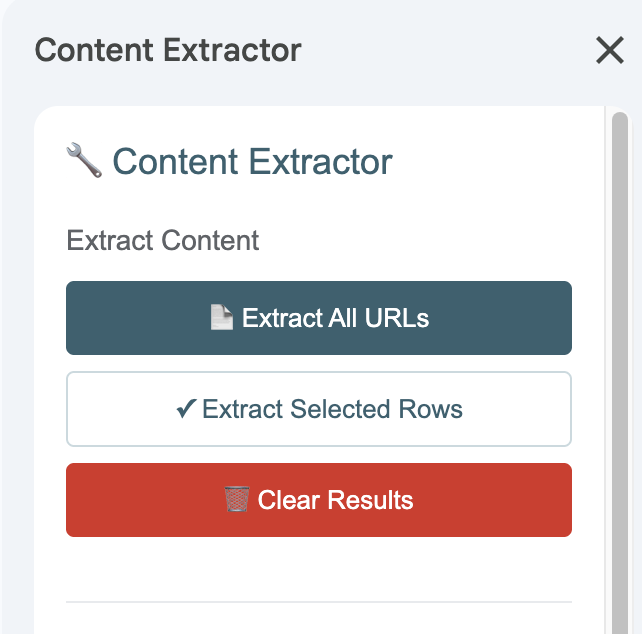
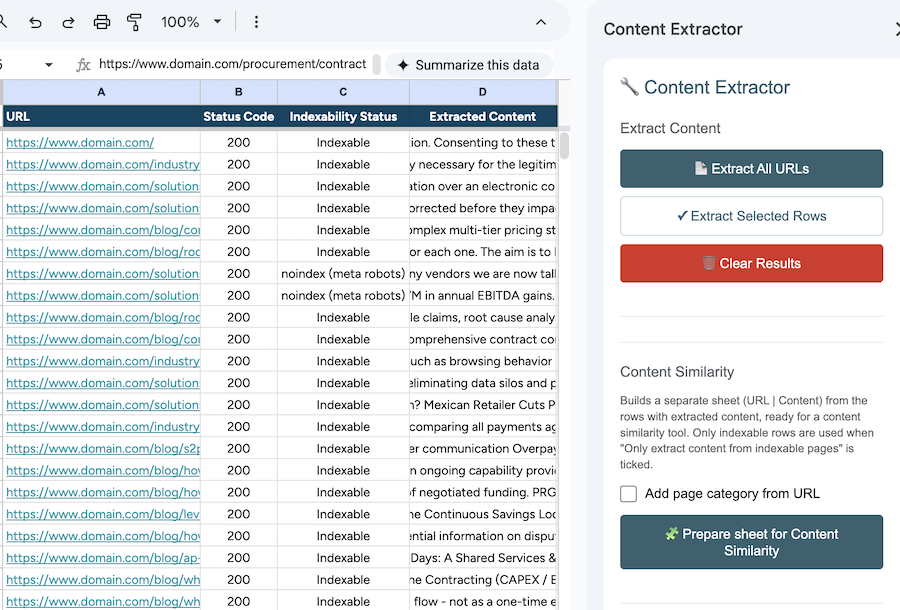
Click Extract All URLs, or select rows and click Extract Selected Rows. Keep the panel open while it runs; you can stop and resume at any time.
Paste final URLs. Redirects aren't followed, so a URL without its trailing slash, or on http instead of https, will show as redirected instead of being extracted.
Limits and privacy
What it does, and what it doesn't
- Speed and volume. Pages are fetched one at a time with a short pause, so expect about 20–40 URLs a minute. Long lists run in batches, so they aren't stopped by Google's 6-minute script limit. Google caps daily fetches at about 20,000 on free Gmail accounts (more on Workspace).
- What it can't read. No JavaScript rendering, so content that only loads after scripts run won't come through. robots.txt isn't checked, so a page blocked there can still show as Indexable. Some sites block automated requests and return 403. PDFs and images get a status check but no text.
- Privacy. Everything runs in your own Google account and your own copy of the sheet. Nothing is sent to Addonist. You can review the code before you copy the sheet, or later under Extensions → Apps Script.
How to use your extracted content
The text is yours to work with
Once the content is in your sheet, use it for whatever your project needs. A few ideas:
Titles, descriptions, and summaries
Use the text with your AI tool of choice to draft page titles, meta descriptions or short summaries.
Content reviews
See what each page actually says, spot thin pages, and compare sections side by side in the sheet.
Find similar content
Click Prepare sheet for Content Similarity, then Download CSV, and upload the file to the free Content Cannibalization Tool. You can also add a page category from the URL.
Questions about extracting content in Google Sheets™
How do I extract text from a list of URLs in Google Sheets™?
Make a copy of the sheet, paste your URLs into column A, and click Extract All URLs in the side panel. Each page’s main text appears in column D, next to its status code and indexability.
Can I extract page content without Screaming Frog or Sitebulb?
Yes. That’s what this tool is for. It runs in Google Sheets™, so you don’t need a crawler licence or any installed software.
Why does Google say the app isn't verified?
Google shows that warning for personal scripts that haven’t been through its review for published add-ons. The script can only access this one spreadsheet, fetch the URLs you add, and show its side panel. You can read the full code in your copy.
What do the columns in the sheet mean?
You only fill in column A with your URLs. The tool fills the rest: B is the status code (such as 200, 301 or 404), C says whether the page is indexable and, if not, why, and D holds the extracted text. D stays empty when nothing was extracted, for example for a redirect or an error page, and C tells you the reason. To see only problem URLs, filter column C with “Text starts with” → Non-indexable.
What gets removed from the page?
Scripts, styles, hidden elements, and the site’s header, navigation and footer, including elements with header, nav or footer in their class names. Short text fragments like buttons and labels are dropped too: anything under 20 characters by default, which you can change in the side panel.
Can I remove other parts of the page, like a cookie banner?
Yes. Paste the element’s opening tag into Custom Exclusions in the side panel, for example <div class=”cookie-banner”>, and everything inside it is removed.
Can I use it on a staging or password-protected site?
Yes. Add Basic Auth, a Bearer token or an API-key header in the side panel. Credentials are saved privately to your Google account, sent only over HTTPS, and only to the domains you allow.
Why can't it extract content from some websites?
Some sites block automated requests. The sheet fetches pages from Google’s servers and identifies itself as Google Apps Script, so firewalls and bot protection services can turn it away. You’ll usually see a 403 or 429 in the Status Code column. Sometimes a block comes back as a 200 with a challenge page instead, so the extracted text is very short or unrelated to the page. Pages that load their content with JavaScript can also come back nearly empty. On your own site, ask your developer to allow these requests, or use a crawler for those pages.