
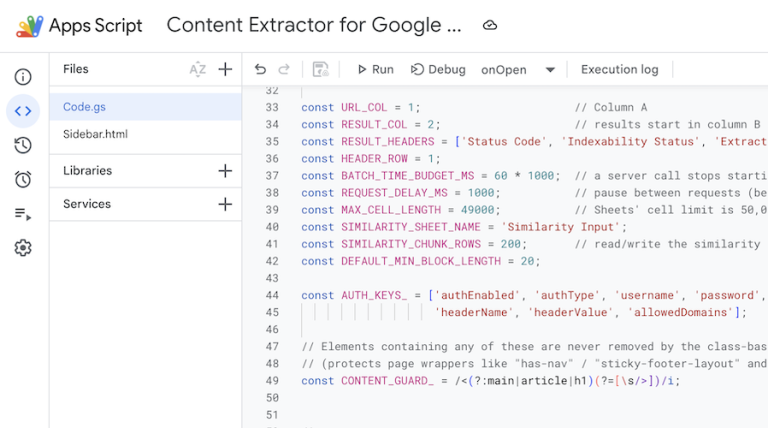
I started using Google Apps Script long before AI could write code for us. Back then I used it mostly to clean up and sort data: the boring, repetitive work that takes an hour by hand and a few seconds with a script.
AI changed what was possible. Today I use scripts in almost every audit: checking HTTP status codes for a list of URLs, auditing redirects to find chains and trailing-slash redirects, pulling out exactly the data I need. Crawlers like Screaming Frog and Sitebulb are great, but when I paste in a list of URLs I often want the results in that exact order, with exactly the columns I need, so I can copy them straight into a report. A small script does that in minutes.
You don’t need to be a developer to do the same. This guide covers what scripts can do for SEO, how to run your first one, how to get AI to write the next one, and what to watch out for along the way.
What can a script do that formulas can’t?
Formulas are great for one cell at a time. Scripts handle jobs with many steps, across thousands of rows, several tabs or whole files, and do them the same way every time.
Google Apps Script is built into Google Sheets. There’s nothing to install, and it’s free with any Google account. For SEO work, it’s useful in five main ways:
- Clean data. Normalize URLs, trim and dedupe keyword lists, fix inconsistent casing, split URLs into folders, or flag rows that break a rule.
- Reshape and combine data. Match a Search Console export to a crawl by URL, merge monthly tabs into one, or turn raw exports into the exact layout a report needs.
- Categorize. Tag thousands of keywords or URLs with your own rules, such as brand vs non-brand, page type or topic, in one click.
- Organize projects. Turn a sheet into a task tracker that emails owners about deadlines, logs status changes, or creates a new tab for each client from a template.
- Get data and automate. Pull data from APIs like Search Console, fetch details from web pages, add your own menus, and run reports on a schedule.
A simple test: if you repeat the same steps in a spreadsheet every week, a script can probably do them for you.
Do you need to know how to code?
No, at least not any more!
I started as a freelance web designer and developer, doing everything myself: site architecture, design, content, development and SEO. I learned the basics of HTML, CSS and JavaScript, but I was never a strong JavaScript developer. Most of the time I found working code online and adjusted it until it did what I needed.
That’s still the skill that matters. The difference is that today AI does the finding and adjusting for you. There are two easy ways in:
- Copy a ready-made sheet. Someone has already built and tested the script; you make a copy and use it from a menu. My Content Extractor for Sheets works this way.
- Ask AI to write it. Describe what you want in plain words, paste the code it gives you, and test it. The section on writing scripts with AI shows how.
What you do need is to understand what a script does before you run it: what it reads, what it changes, and where it sends data. You don’t need to be able to write it yourself. AI can explain any script line by line, and the safety section below covers what to look for.
How to run your first script in sheets?
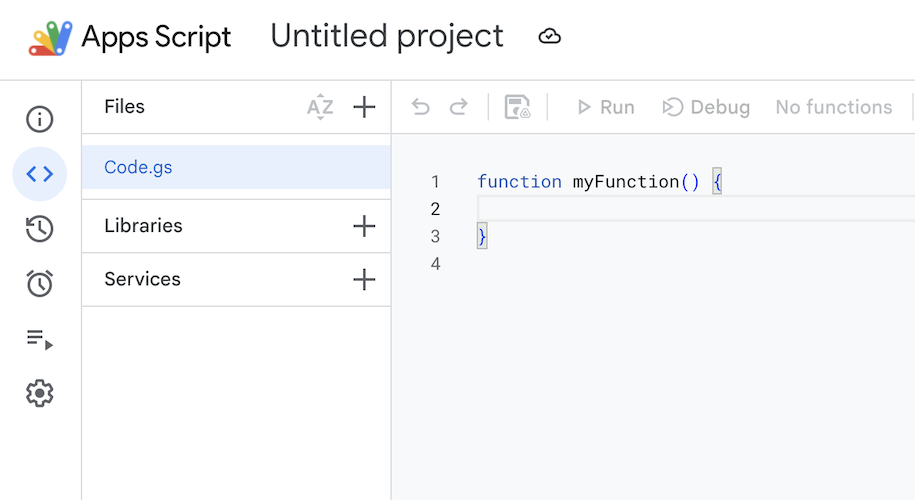
Let’s start with a small, useful example: a custom function, which is a formula you create yourself. It turns a URL into a readable page name, using only the slug (the last part of the URL) and ignoring the folders before it. That’s handy when you need readable names in a report, a redirect map or a content inventory, and don’t have the page titles.
https://example.com/blog/how-to-run-your-first-apps-script/ becomes How to Run Your First Apps Script.
- Open a sheet with a list of URLs in column A.
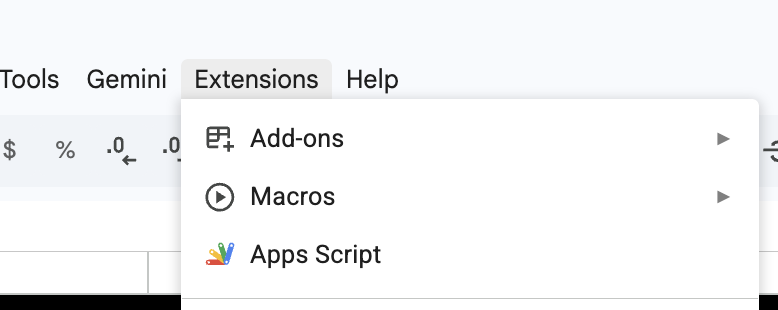
- Go to Extensions → Apps Script. The script editor opens in a new tab.
- Delete the code that’s there, paste the code below, and click Save.
- Go back to your sheet, type =SLUGTOTITLE(A2) in column B, and drag it down.
/**
 * Turns the slug of a URL into a readable title.
 * Folders before the slug are ignored.
 * @customfunction
 */
function SLUGTOTITLE(url) {
  if (!url) return '';
  // Words to keep in capitals, and small words to keep lowercase. Add your own.
  const UPPERCASE = ['seo', 'ai', 'url', 'faq', 'ppc', 'b2b'];
  const LOWERCASE = ['a', 'an', 'and', 'the', 'of', 'in', 'on', 'for', 'to', 'or', 'vs', 'with'];

  const slug = String(url).trim()
    .replace(/^[a-z]+:\/\/[^\/]+/i, '')   // remove https://domain.com
    .split(/[?#]/)[0]                      // remove ?parameters and #fragments
    .split('/').filter(Boolean).pop();     // keep only the last part: the slug
  if (!slug) return 'Homepage';

  return slug
    .replace(/\.(html?|php|aspx?)$/i, '')  // remove .html, .php and similar
    .split(/[-_]+/).filter(Boolean)        // split the words at - and _
    .map((word, i) => {
      const w = word.toLowerCase();
      if (UPPERCASE.includes(w)) return w.toUpperCase();
      if (i > 0 && LOWERCASE.includes(w)) return w;
      return w.charAt(0).toUpperCase() + w.slice(1);
    })
    .join(' ');
}
Here’s what it does:
- Empty cells stay empty.
- It removes the domain, any ?parameters and #fragments, then keeps only the last part of the path: the slug. The homepage has no slug, so it returns “Homepage”.
- It removes file endings like .html or .php.
- It splits the slug into words at hyphens and underscores.
- Each word gets a capital letter, except small words like “to” or “of” (unless they come first). Words in the UPPERCASE list, like SEO and FAQ, stay in capitals.
- @customfunction in the comment at the top is what lets you use it as a formula.
Make it yours: the two lists at the top are where you adjust it. Add your brand name or product acronyms to UPPERCASE, and any words you want kept lowercase to LOWERCASE. It’s the easiest way to get used to editing a script.
You could get part of the way with SPLIT, SUBSTITUTE and PROPER formulas, but PROPER capitalizes every word (“How To Run…”) and turns SEO into “Seo”. A named function is easier to read, reuse and adjust. Custom functions suit cell-by-cell jobs like this one. For work across a whole sheet, such as deduping, merging tabs or categorizing everything at once, you’ll use a script you run from a menu.
That’s what most of the scripts AI writes for you will look like.
How do I get AI to write a script that works?
For simple jobs, just ask for what you need, in plain words.
Here’s a real one. Ahrefs Site Audit has an issue called “HTTPS page has internal links to HTTP”. In the app, the report shows only the HTTP links for each page. But when you export it, the internal links column holds every link on the page, both http and https, one below the other in a single cell. To get back to just the problem links, I asked:
Create a small Apps Script for Google Sheets that removes all links from column J that start with https (I want to keep only http links there). The links in the column are currently added one below another in the same cell.
That was enough. The last sentence, about how the links sit in the cell, matters most: the AI can’t see your sheet, so it only knows what you tell it.
For bigger jobs, four habits make the difference:
- Describe the sheet, not the code. Say which tab and columns hold the data, which row has the headers, what the output should look like, and what to do with empty or unusual rows.
- Protect your data. Ask for results in new columns or a new tab, never written over the original, and for a short summary of what changed.
- Test on a few rows first, or on a copy of the sheet. If it fails, paste the exact error message and the line it points to back into the chat. Don’t describe the error in your own words.
- Ask for an explanation in plain language before you run it on real data, including what the script reads, changes and sends anywhere
Paste the script AI gives you into Extensions → Apps Script and save it. If it adds a menu, reload the sheet and the menu appears next to Help. The first time you run a script from a menu, Google asks for permission, which is the screen covered in the next section.
Is it safe?
A script runs as you, with the permissions you approve. Most of the time that’s fine. The point is to know what you’re approving.
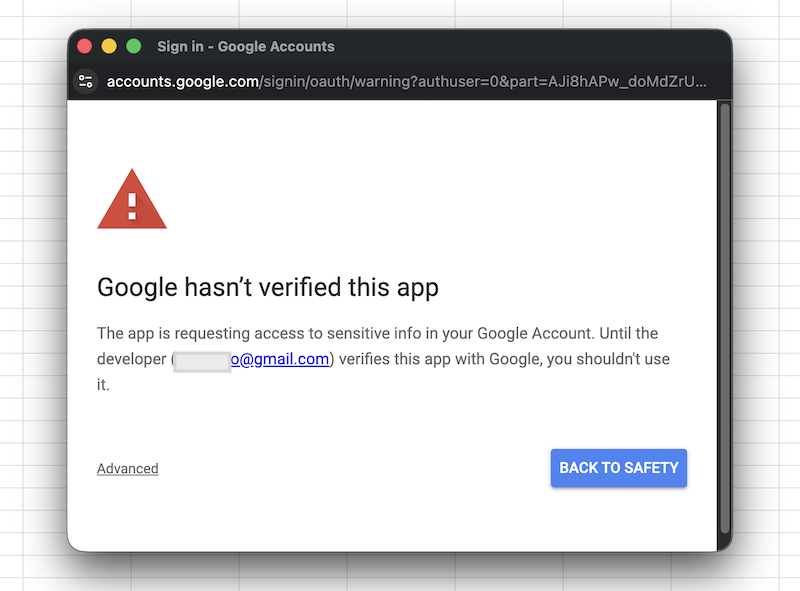
The permission screen. The first time you run a script from a menu, Google lists what it wants to do, such as “see, edit, create and delete your spreadsheets” or “connect to an external service”. Compare that list with what the script should need. A keyword cleaner needs your spreadsheet; it has no reason to read your Gmail.
“Google hasn’t verified this app”. You’ll see this for your own scripts and for sheets you copy from others. It means the script hasn’t been through Google’s review for published add-ons. It’s a prompt to check the script, not proof that something’s wrong. To continue, click Advanced, then Go to (script name).
Never put secrets in cells. API keys and passwords in a sheet are visible to anyone it’s shared with. A well-built script stores them privately in your Google account (Apps Script calls these user properties) or asks for them each time. In my Content Extractor, for example, credentials for password-protected sites are saved per user, so other people with access to the sheet can’t see them.
Check scripts you didn’t write. Paste the code into an AI chat and ask: “What does this read, what does it change, and where does it send data?” Be wary of anything that sends data to a domain you don’t recognise.
Can a script fetch web pages?
Yes. It’s one of the most useful things a script can do for SEO: check status codes and redirects, read titles and canonicals, or pull page text. It’s also where scripts most often hit a wall.
The requests come from Google’s servers and identify themselves as Google Apps Script, so many sites, especially those behind Cloudflare or another firewall, block them with a 403, a 429 or a challenge page. You can’t change where the requests come from, so this is hard to fix inside a script. Google also caps fetches at 20,000 a day on a free Gmail account (100,000 on Workspace), and scripts don’t run JavaScript, so content that only loads in the browser won’t be there. To see how a site treats different bots, try the AI & Search Crawler Access Checker.
On your own site, a direct fetch usually works fine, and if it’s blocked, your developer can allow the requests. That’s how my Content Extractor works, and copying it is a good way to see how a reliable fetching script is built. For other people’s sites, a proxy service gives you more ways around blocks. That’s why Backlink Monitor fetches pages through a proxy: it checks links on sites I don’t control, and as a published add-on it can’t list in advance every URL users might check.
What will stop a Google Sheet script from working?
Sooner or later, every script hits one of these. None of them mean you did something wrong; they’re simply how Apps Script works.
1. Time limit
A script stops after 6 minutes per run, and a custom function after 30 seconds. You’ll see “Exceeded maximum execution time”. The most reliable fix is a side panel that runs the script in short batches: the panel calls the script, it processes rows for a minute or so, then the panel calls it again for the next batch, until everything is done. Ask AI for exactly that, with a progress bar and a Stop button. You just keep the sheet open while it runs.
This is how my Content Extractor handles long lists. Avoid fixes that schedule the script to restart itself with triggers: they’re harder to stop, can run twice, and count towards your daily trigger limit (below).
2. Slow sheets
A script that reads or writes one cell at a time crawls on a big sheet. Ask AI to read and write whole ranges at once instead. It’s the most common improvement to AI-written scripts, and it can turn minutes into seconds.
3. Surprise changes to your data
A script that writes over the original data can’t always be undone with Ctrl+Z. Work on a copy, or have results written to new columns or tabs. If something does go wrong, File → Version history lets you restore an earlier version.
4. Scheduled scripts that stop
Scripts that run on a timer have their own daily limit: 90 minutes of total run time on a free Gmail account, 6 hours on Workspace. Keep scheduled jobs small, or run them less often.
Which SEO tasks should you automate first?
Don’t start with a script. Start with your own work. Look at what you do in spreadsheets every week and ask: which steps are always the same? That’s where a script will save you the most time, and it’s easier to describe to AI because you know it well.
A few ideas to get you going:
- Clean and dedupe keyword lists
- Normalize URLs across exports so lookups match
- Split URLs into folders to compare site sections
- Categorize keywords or URLs with your own rules
- Send deadline reminders from a project tracker
- Audit redirects on your own site, including chains and trailing-slash redirects
Pick one small script that saves you twenty minutes this week. The next one gets easier.