Understanding results
Both manual and scheduled checks provide results directly in your Google Sheet. The columns that appear depend on your configuration settings before starting checks.
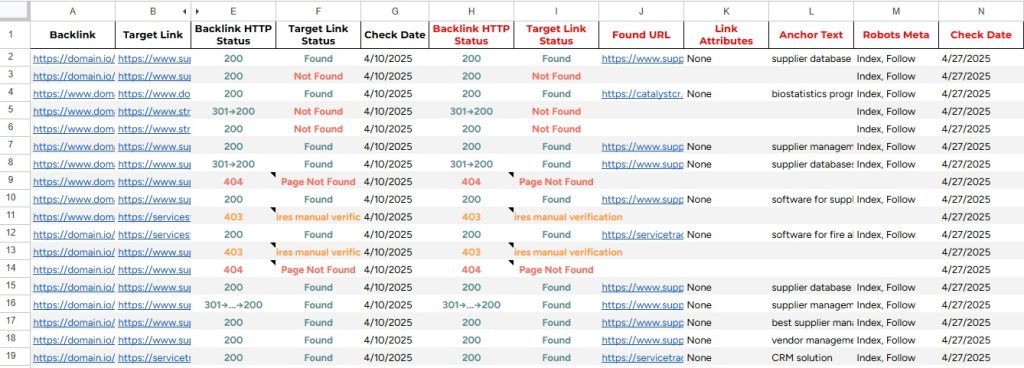
Status columns (always appear)
- Backlink HTTP Status: HTTP response code from the checked page
- 200: Success
- 404: Page not found
- 403/401: Authentication required
- 429: Rate limit exceeded
- 5xx: Server errors
- Redirects: Shows the first and final status (e.g., “301→200”)
- First status (30x) indicates a redirect occurred
- Final status shows the destination page result (e.g., 200 for success, 404 for not found)
- Note: We show only the first and last status, not the entire redirect chain
- Target Link Status:
- Found: The target link was located on the page
- Not Found: The target link was not detected
- Requires manual verification: The page has protection measures
- Check Failed: An error occurred during check
- Page Not Found: The page that should contain the backlink doesn’t exist
- Check Date: When the check was performed
“Requires manual verification” means the page has security measures (like Cloudflare protection) that blocked our automated check. You’ll need to visit the page in your browser to verify if your backlink exists.
Optional columns (based on your settings)
These columns appear only if you enable them in the settings before starting checks:
- Found URL: The actual URL found on the page (appears if “Extract Found URL” is enabled)
- Link Attributes: Any rel attributes applied to the link (appears if “Check Link Attributes” is enabled)
- Anchor Text: The clickable text of the found link (appears if “Extract Anchor Text” is enabled)
- Robots Meta: Any robots directives on the page (appears if “Check Robots Meta Tag” is enabled)
Result placement
- Results appear starting from column C by default, or from your specified “Results Start” column
- Manual check results have black headers
- Scheduled check results have red headers
- Both manual and scheduled results can exist in the same sheet
Important notes
- Configure which columns you want BEFORE starting checks (scheduled or manual)
- Manual checks use whatever settings are configured when you click “Start Check”
- Scheduled checks use whatever settings are configured when you create the schedule
- Once you create a schedule, those settings are locked for all future scheduled runs
- To change which columns appear in scheduled checks, you need to remove and recreate the schedule with new settings