How to schedule automatic backlink checks
Before setting up scheduled checks, make sure to configure your settings as described in the Configure the Addon section. Your scheduled checks will use the same configuration as manual checks, including:
- Column selection (Backlink URLs, Target Links, Results)
- Row selection (All rows or custom range)
- Link match type (Flexible, Exact, or Domain)
- Additional options (Link Attributes, Anchor Text, etc.)
1. Open the schedule feature
- Open your Google Sheet
- Click on the Backlink Monitor sidebar (if not open, go to Extensions → Backlink Monitor → Open Backlink Monitor)
- Click the “Schedule” button at the bottom of the sidebar
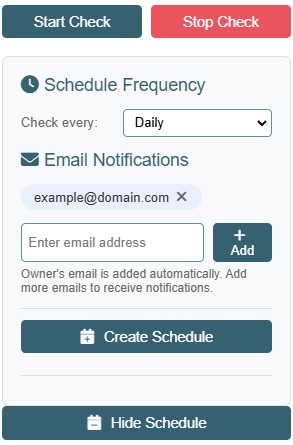
2. Configure schedule settings
- Choose frequency: Select how often you want the checks to run:
- Daily
- Weekly
- Biweekly
- Monthly
- Add email addresses for notifications
- Owner’s email is added automatically
- Add more emails if needed by clicking on the add button.
- To remove an email, click the “×” button next to it.
3. Create the schedule
- Click the “Create Schedule” button
- The schedule will be activated immediately
- You’ll see a confirmation message
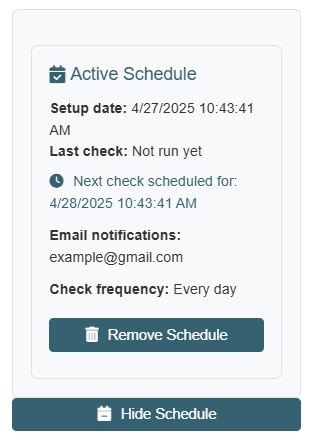
Emails will be sent from the account owner’s address. You can edit notification emails later in the Dashboard section if needed.
Email notifications
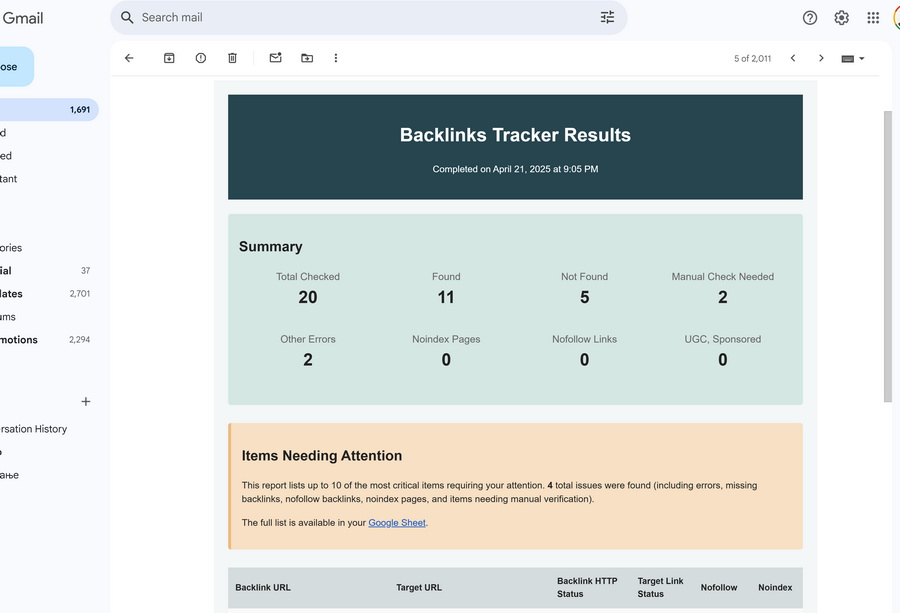
The email report includes:
- Total links checked
- Number of links found/not found
- Links requiring manual verification
- Error counts
- Up to 10 issues requiring attention
- A link to view full results in Google Sheets