Understanding scheduled check results
Where results appear
- Scheduled check results appear in the same location each time
- By default, results will use the first available column (starting from column C)
- If you specify a Results Start column in the settings, results will always appear there
- Results from each scheduled check will overwrite the previous scheduled check results
Result formatting
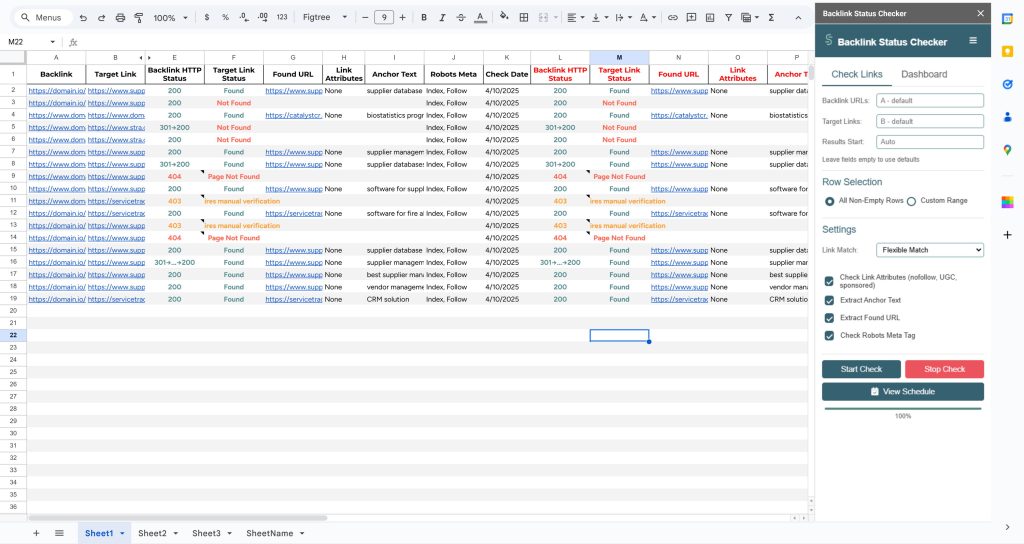
- Headers for scheduled results appear in red text to distinguish them from manual checks
Result management
- Each scheduled check completely replaces the previous scheduled results
- Manual check results (with black headers) remain separate and won’t be overwritten
- You can keep both manual and scheduled results in the same sheet for comparison
Best practices
- Set a specific output column to ensure consistent result placement
- Use manual checks alongside scheduled checks to verify specific issues
Important notes
- Scheduled results always use the same columns to prevent data sprawl
- Red headers indicate automatic scheduled check results
- Black headers indicate manual check results
- Both types of results can coexist in the same sheet
Need to preserve scheduled results? You can:
- Check the version history (File → Version history → See version history)
- Or make a copy of the sheet before the next scheduled check runs