
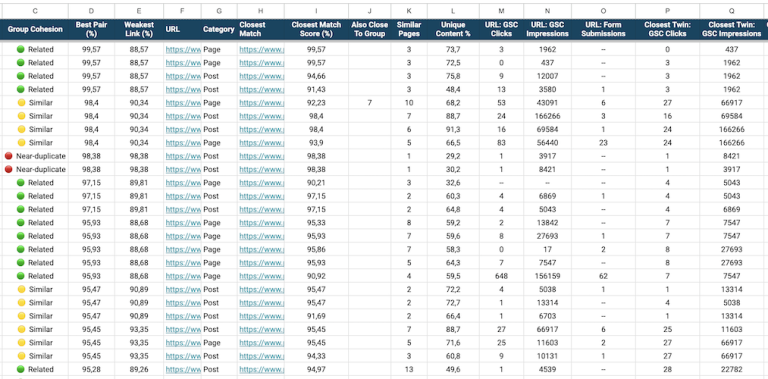
Most sites that have published for a few years have pages that say the same thing: a post rewritten instead of updated, two authors covering one topic, service pages that drifted together. A content cannibalization audit finds those pages and decides what happens to each one.
This is the process I follow, from the crawl export to checking the results. It starts from your content, so it finds pages that say the same thing. Keyword cannibalization starts from your queries instead, and it can happen between pages that look nothing alike. The two find different problems, so I’d recommend checking both. If you’re not sure which one you’re dealing with, start with keyword vs content cannibalization.
What do you need before you start?
Two things are required:
- The content of your pages. A list of URLs with the text of each page. Step 1 shows how to get it for free in Google Sheets.
- An OpenAI API key. The similarity analysis uses OpenAI to compare pages by meaning. It costs about $0.02 per 1,000 pages, and step 2 shows where to get a key.
Two more are optional, but I’d strongly recommend them:
- Search Console data for at least the last 6 months: clicks, impressions and queries per page.
- Your business data: conversions per page from analytics, and backlinks from Ahrefs, Semrush or a similar tool.
The content finds the overlap. Search Console and business data tell you what to do about it, because a similarity score can’t tell you which page ranks for your money keywords or brings leads. You’ll use them in step 4.
Step 1: Export the content of your pages
Start by exporting the content of the pages you want to include in the analysis. You need two columns: the URL and the main text of each page.
If you use a crawler, it can do this with custom extraction. Follow the guides for Screaming Frog or Sitebulb, and export the URL with the extracted text.
The easier way is my free Content Extractor for Google Sheets. There’s nothing to install, and it prepares the file for step 2. Below is how to use it, but first, decide which pages to include.
Decide what’s in scope
Before you collect URLs, decide which pages to compare:
- Only pages that should rank. Leave out redirects, noindexed pages, pagination and internal search results.
- One language at a time. Translations of the same page will look similar, because the comparison is by meaning.
- Big sites in sections, like blog, services or products. Each run stays focused and the groups are easier to review.
Your XML sitemap is usually the quickest source of URLs. Use final URLs: the extractor doesn’t follow redirects, so a URL without its trailing slash, or on http instead of https, shows up as redirected instead of being extracted.
Extract the content in Google Sheets
Copy the sheet, paste your URLs into column A and click Extract All URLs. The setup takes four steps, explained on the Content Extractor page. Next to each URL you get its status code, whether it’s indexable, and the main text, with menus, headers and footers already removed. Filter the indexability column to spot pages you should leave out.
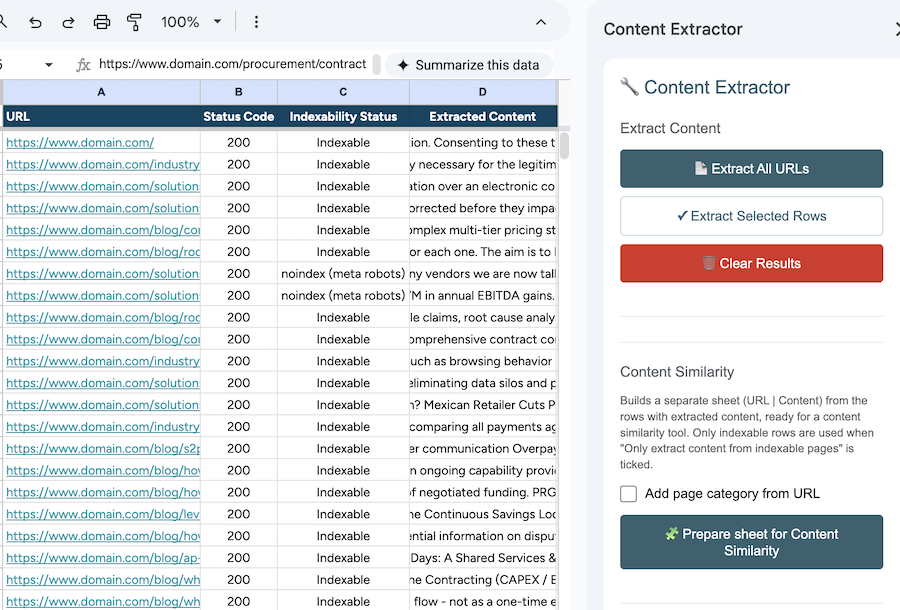
Two settings matter for the audit:
- Custom exclusions. Remove anything else that repeats across pages, like a cookie banner, a newsletter box or a related-posts block, by pasting its opening tag, for example
<div class="cookie-banner">. The cleaner the text, the more accurate the similarity scores. - Staging sites. Add login details for a staging or password-protected site, and you can check new pages for overlap before they go live.
When it’s done, click Prepare sheet for Content Similarity, add a page category from the URL if you want one (more on why in step 2), and click Download CSV.
Step 2: Run the similarity analysis
On a small site, you could read the pages side by side. Past a few dozen pages, you need to compare every page with every other page, and by meaning, not just shared words. Two posts can say the same thing in completely different wording.
I built a free content cannibalization tool for this step. It removes text that repeats across the site, compares the meaning of every page using OpenAI embeddings, and groups similar pages by topic.
Get an OpenAI API key
The API is separate from a ChatGPT subscription, so you need an account on the OpenAI platform with a little credit added. Then create a key on the API keys page and copy it right away: the full key is only shown once. OpenAI’s help article Where do I find my OpenAI API key? walks through it.
The cost is small: about $0.02 per 1,000 pages. The tool shows the estimate before you enter the key, uses the key only during your session and never stores it.
Run the analysis
- Upload the CSV from the Content Extractor, or your crawler export. The URL and content columns are detected automatically. If something’s wrong, open Change columns and pick the right ones.
- Add categories if you want them (optional). If the file has a Category column, like blog, service, product or location, the results show each page’s category and whether two similar pages are in the same one. That tells you a lot: two blog posts overlapping is a content problem, but a blog post overlapping a service page can be the reason the wrong page ranks for a money keyword.
- Check the cost and add your API key.
- Check what was removed. Text that repeats on most pages, like menus, footers, cookie banners and CTAs, is removed before comparing. You can see what was removed and change how common a block must be, or turn it off.
- Pick a threshold. Start with the default, 88%. The results show how many pairs you’d get at 80, 85, 88, 90, 95 and 98%. Re-running at another threshold in the same session is free, so go stricter if the list is long, or looser if it’s short.
- Download the Excel file. One Excel file has everything: the topic groups, template groups, every similar pair, a summary, and your embeddings. If you’d rather work with CSV, each of these can be downloaded as a separate file.
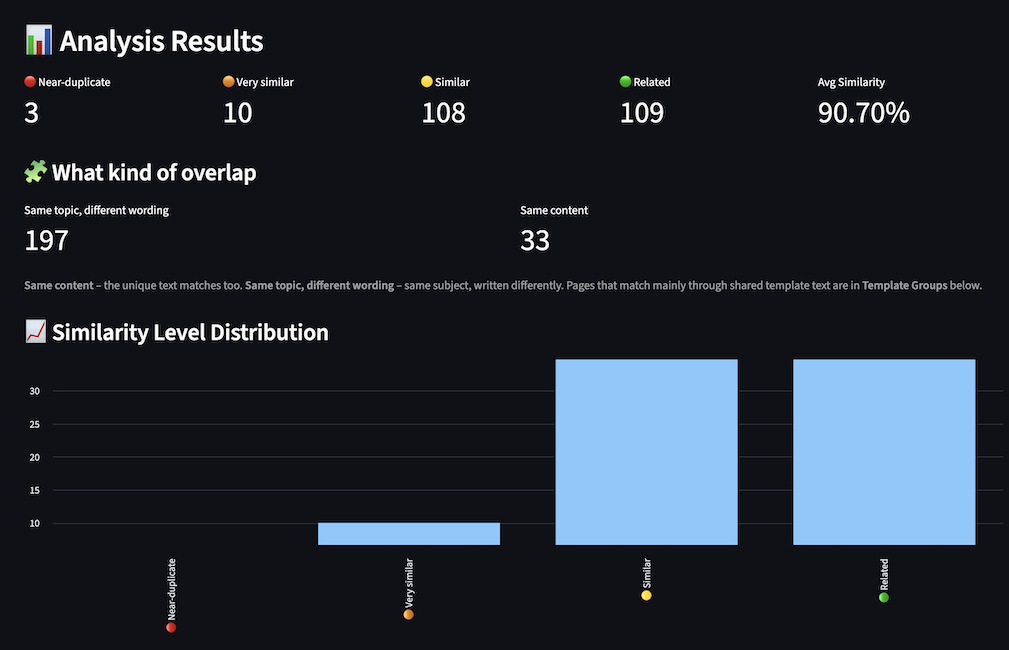
Keep the Excel file, or the CSV with your data and embeddings. If you upload it again later, the embeddings are reused, so you only pay for pages that are new.
Step 3: Review the groups
A score tells you two pages are close. Only reading them tells you whether that’s a problem. There’s no cut-off that works for every site: pages built from one template score higher than posts written separately, and a product page and a setup guide for the same product can be very close in meaning while answering different searches. Use the scores to decide what to read first, not what to fix.
Work through the results in this order:
- Duplicates and near-duplicates first. They’re the quickest wins: old versions, pages published twice, copies with small edits. Most of them end in a redirect.
- Topic groups next. Pages that cover the same topic in different words. Open each page in the group and ask: would a reader get anything from the second page that the first doesn’t give them?
- Template groups last. Location, event or product pages built from one template, with little text of their own. They’re a separate problem: the fix is usually adding unique content or removing thin pages, not merging.
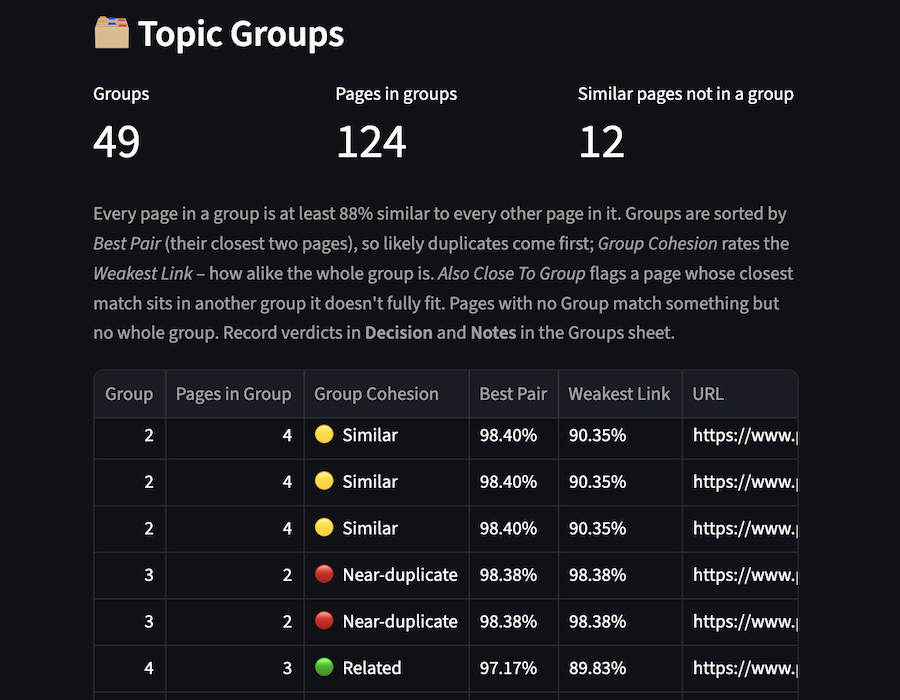
Four things to watch for:
- Overlap across categories. If you added categories, filter the similar pairs where the two categories differ, like a blog post next to a service page. Check those first: that’s where a money keyword is most likely to rank with the wrong page.
- Shared blocks, not shared content. Two pages can look alike because they share a long form, a pricing table or the same FAQ. The tool shows how much of each page is its own content. If that’s low, the overlap is the template, not the topic.
- Pages close to another group. A page can be similar to pages in a different group. Check those before you decide, or you’ll redirect two pages to two different places.
- Different readers, same topic. A beginner’s guide and an advanced one can score high and still both deserve to exist.
Step 4: Decide what to do with each group
For every group, pick the page you keep, then decide what happens to the others. Don’t decide on content alone: the analysis shows which pages overlap, not which one brings clicks or leads.
Add your data first
Export at least 6 months of Search Console data (clicks, impressions and top queries per page), plus conversions and backlinks if you have them. Match them to the Topic Groups sheet by URL with VLOOKUP, and check the URLs are written the same way in both files. Search Console’s export stops at 1,000 rows, so for bigger sites use a Sheets add-on or the API.
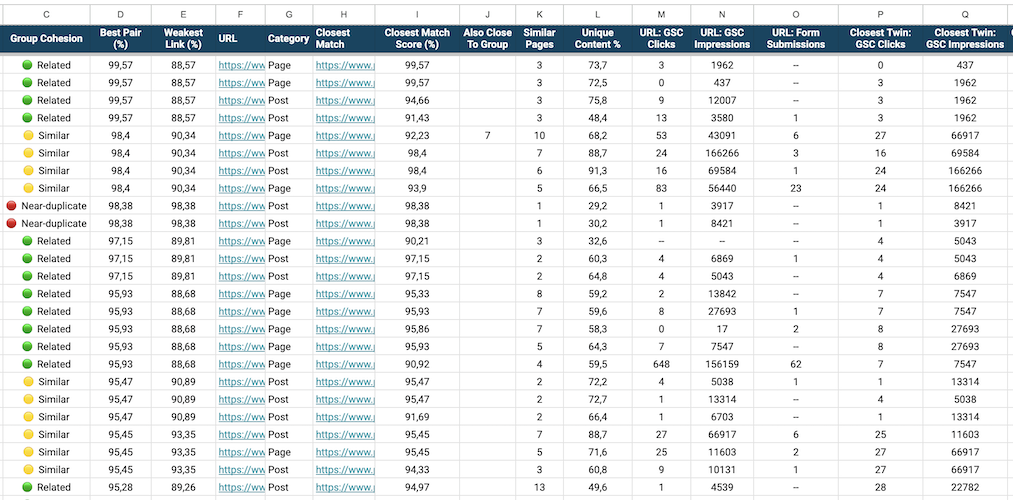
Which page should you keep?
Usually the one that wins on, in this order: conversions, rankings for your money keywords, clicks, backlinks, and fit with the search intent. When it’s close, keep the stronger page and move the best parts of the others into it.
Treat this as your recommendation, not the final decision. SEO data is the first step, but business reasons come first: a page sales sends to prospects, a product launching next quarter, a partner campaign, or a legal page that has to stay. Share the sheet with the content team, or whoever owns the pages, and let them confirm before anything is removed.
What happens to the other pages?
| Decision | When to use it |
|---|---|
| Merge | It has sections, examples or data the kept page lacks. Move them over, then redirect. |
| Redirect | Nothing on it is worth moving. 301 to the kept page. |
| Rewrite | It can serve a different reader or angle. |
| Noindex | It’s needed, but not in search, like a campaign landing page. |
| Leave as is | The pages have different jobs after all. Note why. |
Write your recommendation into the Decision column, and update it once it’s agreed. That sheet becomes your list for the next step.
Step 5: Implement the changes
The order matters here. If you redirect first and merge later, the content you meant to keep is already gone from the live site.
- Merge the content. Update the kept page with the best parts of the others: missing sections, examples, data, FAQs. Edit it into one page that reads well, not two pages stacked together.
- Add the 301 redirects. From each removed URL straight to the kept page, never to the homepage. If older redirects already point to a URL you’re removing, update them too, so you don’t create chains.
- Update internal links. Change links that point to the removed URLs so they go straight to the kept page. Use consistent anchor text for it. On WordPress, the Better Search Replace plugin does this across the whole site at once. Back up the database first, run it as a dry run, and search for the full old URL with its trailing slash, so /seo-audit/ doesn’t also change /seo-audit-checklist/.
- Rewrite the pages that stay. New focus, title, H1 and target query, so they no longer compete with the kept page.
- Check the sitemap. Most CMSs and SEO plugins drop noindexed and deleted pages from the XML sitemap on their own. Check it anyway: a page that’s redirected but still published can stay in, and custom or static sitemaps need updating by hand.
On a big site, work in batches and start with the groups that matter most to the business. Keep a log of every change with the date: old URL, new URL, decision. You’ll need it in the next step.
Step 6: Check the results
Right after the changes, crawl the removed URLs in list mode, or check them with a small Apps Script. Each one should 301 straight to the kept page, with no chains or 404s.
After 4–8 weeks, open Search Console and check that the kept page picked up the clicks and queries of the pages it replaced, and that only one of your pages ranks for each money keyword. Rankings often move around for a few weeks after a merge, so don’t judge the result in the first week.
Then put the next audit in your calendar. Overlap builds up again as you publish, so once or twice a year keeps it small.
FAQ
Will I lose traffic when I merge pages?
You might see some movement for a few weeks. Done well, the kept page usually ends up stronger than the pages were apart. The main risk is removing content that earned clicks, which is why you merge before you redirect, and check the queries afterwards.
Can I use canonical tags instead of redirects?
Only when both pages have to stay live. A canonical tag is a hint that Google can ignore, and visitors still land on both pages. If one page has no reason to exist on its own, a 301 redirect is the clearer signal.
Should I delete pages that get no traffic?
Not automatically. Check for backlinks, conversions and a reason to exist first, like a page used in email campaigns or customer onboarding. If it has none, redirect it to the closest relevant page. Only let it return a 404 or 410 when no relevant page exists.
How many pages can I analyze at once?
Up to 5,000 URLs per run. For a bigger site, split it into sections, like blog, services and products, and run each one separately. The groups are easier to review that way too.