Dashboard guide for Backlink Monitor
The Dashboard provides an overview of your backlink monitoring activity and results. This guide explains how to navigate the dashboard, interpret the statistics, and review your check history.
Using the dashboard
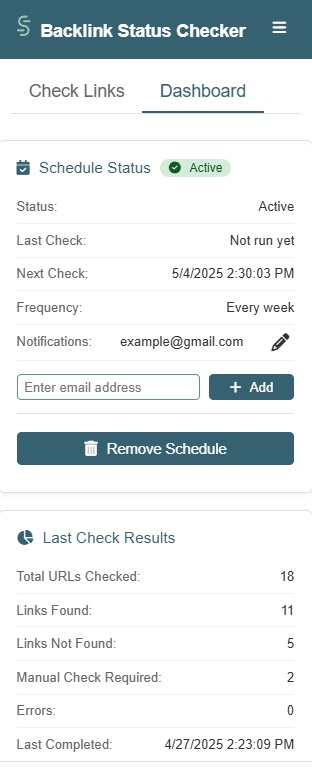
Accessing the dashboard
- Open your Google Sheet where Backlink Monitor is installed
- Click on Extensions → Backlink Monitor → Open Backlink Monitor
- In the sidebar that appears, click on the Dashboard tab at the top
Dashboard layout
The Dashboard is organized into several key sections:
- Schedule Status: Shows information about any active scheduled checks
- Last Check Results: Displays statistics from your most recent check
- Quick Actions: Provides buttons for common tasks like starting a new check
Dashboard navigation
- Use the tabs at the top of the sidebar to switch between the Check Links screen and the Dashboard
- Dashboard information automatically refreshes when you open it
- Click the refresh icon in the Dashboard header if you want to manually update the statistics
Understanding statistics
The Dashboard presents several key metrics about your backlink checks:
Schedule status section
- Status: Shows if a schedule is active or not
- Last Check: Date and time when the last scheduled check was completed
- Next Check: When the next scheduled check will run
- Frequency: How often checks are scheduled to run
- Notifications: Email addresses receiving notifications
You can:
- Edit notification email addresses
- Remove active schedules
For more details visit the Manage Your Schedule page.
Last check results section
- Total URLs Checked: Number of backlinks verified in the last check
- Links Found: Number of target links successfully found
- Links Not Found: Number of target links that couldn’t be located
- Manual Check Required: Pages that need manual verification due to protection measures
- Errors: Number of checks that failed due to technical issues
- Last Completed: Date and time when the check finished
Viewing check history
While the Dashboard primarily shows your most recent check results, you can access historical data in several ways:
Reviewing past results in the spreadsheet
The Dashboard shows the last check’s results, but previous checks are preserved in your spreadsheet:
- Each scheduled check adds results in new columns
- The date of each check is recorded in the “Check Date” column
- You can scroll right in your spreadsheet to see prior check results
Comparing results over time
To track changes in your backlink status over time:
- Examine the columns from different check dates
- Look for changes in status (e.g., links that were previously found but are now missing)
- Pay attention to the “HTTP Status” column to identify if pages have been removed or changed
Exporting dashboard data
While the Dashboard itself doesn’t have an export function, you can:
- Take screenshots of the Dashboard statistics
- Export your Google Sheet to other formats for reporting
- Use Google Sheets’ built-in charting features to visualize trends in your backlink data